
Authenticator - 2FA & Password
FIRE LtdTools
2.957.00 Reviews
- Version
- 72.0
- Installs
- 1.00M
- Age Rating
- Everyone
Screenshots
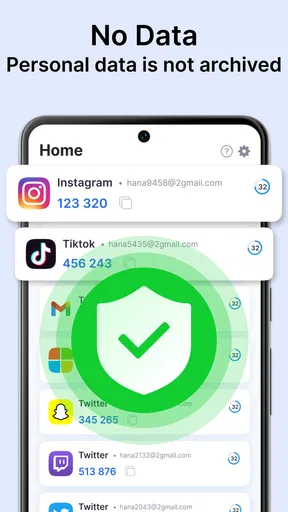
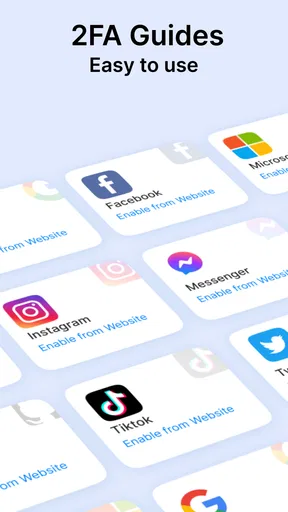
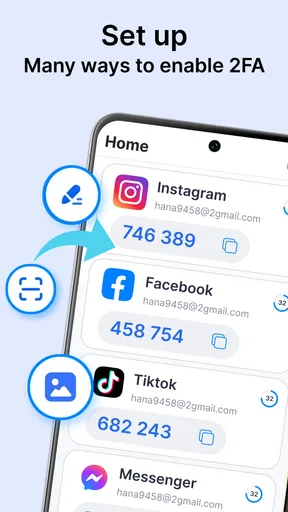
Our Review of Authenticator - 2FA & Password
 Analysis by Appyee
I tend to judge a security app less by its first impression than by whether I still trust and use it after the novelty wears off. Authenticator - 2FA & Password brings two-factor codes and password tools together, which can make it appealing if you want fewer separate apps in your routine. But security tools need more than a tidy start: they need a dependable setup, a backup plan you understand, and habits you can keep up when you are in a hurry.
Getting Started with Ease
First things first, downloading and installing Authenticator - 2FA & Password is a breeze. Whether you’re on Android or iOS, the app is light and doesn’t hog your phone’s resources. Once installed, you’re greeted with a clean interface that doesn’t overwhelm you with too many options. It’s all about keeping things simple and secure.
It is a free tools app from FIRE Ltd, with a 2.9 average rating from 894 ratings and 500K+ installs. It is rated for Everyone, and the current version is 69.0; the app was released on Aug 9, 2024. Those figures give a sense of its reach, but they do not settle the question that matters most for a security tool: whether its routine fits the way you actually manage accounts. In-app purchases range from $4.99 to $59.99 per item, so I would check what is included before relying on any paid feature or treating the free setup as the whole product.
Setting Up Two-Factor Authentication (2FA)
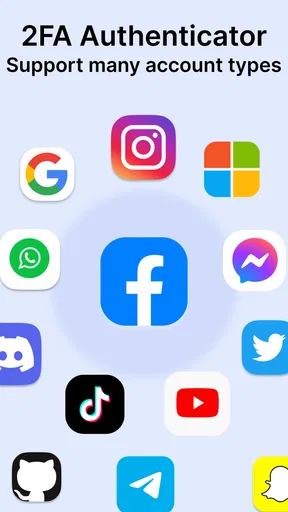
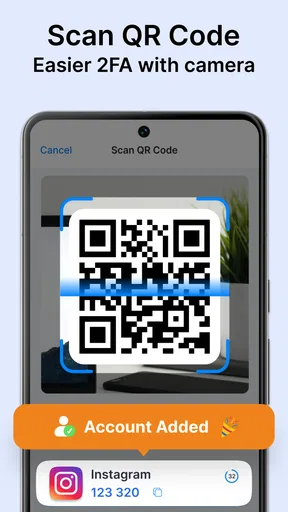
We all know how critical it is to have an extra layer of security for our online accounts. With this app, setting up 2FA is as easy as pie. You can add multiple accounts, and the app supports a wide range of services like Google, Facebook, and many others. Just scan the QR code from your account settings, and you’re set. No fuss, no muss.
What I really liked is the ability to organize your accounts. You can customize icons and labels, so finding the right code when you’re in a hurry is super simple. It’s a small feature, but it makes a world of difference when managing multiple logins.
For a less stressful setup, I would add accounts gradually rather than moving everything in one sitting. Start with an account you can safely access on another device or through its recovery process. After scanning its QR code, test the new code at sign-in before removing any old method. This small check catches a mistyped setup while you still have a way back in. Keep the recovery codes supplied by each service somewhere separate from the phone; an authenticator is useful, but it should not be the only route into an account.
That workflow is especially handy for a busy day: say you are signing in to a work or personal account from a borrowed computer. You enter the password, open the authenticator on your own phone, and use the current code without leaving that code in a message or note. Labels matter in exactly this moment. If two entries look alike, name them for the account and, where relevant, distinguish personal from work access so you do not waste time trying a code from the wrong entry.
Password Management at Its Best
Besides being a 2FA tool, the app doubles as a password manager. It’s like hitting two birds with one stone. You can generate strong, unique passwords for your accounts and store them securely within the app. This feature is a lifesaver for those of us who struggle to remember complex passwords.
The app uses advanced encryption to keep your data safe, so you can rest easy knowing your passwords aren’t just floating around in cyberspace. Plus, the auto-fill feature means you won’t have to manually type your login credentials every time you need to sign in. A real timesaver!
Combining passwords and codes can reduce app switching, but it also concentrates important access details in one place. I would use a distinct, strong way to unlock the phone and the app, and avoid keeping the app open while handing the device to someone else. If you already use a password manager you trust and mainly want rotating codes, adding a second vault may create duplication rather than convenience. Decide which app is your source of truth for passwords before importing or saving more logins, then keep that choice consistent.
Auto-fill is most valuable when it saves effort without making you careless. Before accepting a saved login, check that the account and site are the ones you intended; convenience should not replace basic attention to where you are signing in. For accounts you rarely use, generating a unique password and recording it once can help avoid the familiar temptation to reuse a memorable password. The trade-off is that a combined tool makes your own organization and device security more important.
Backup and Sync
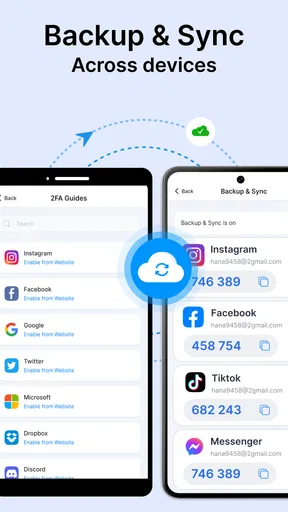
One of the standout features of Authenticator - 2FA & Password is the ability to back up and sync your data across multiple devices. Whether you switch phones or use a tablet alongside your smartphone, your data stays with you. Just set up a secure cloud backup, and you’re golden. It’s seamless and ensures you won’t lose your important information if something happens to your device.
For long-term use, I would treat a backup as a recovery task to understand, not a box to tick and forget. Before replacing a phone, check that the backup is current and that you know how to restore it. If you can, make the transition while the old phone is still available: install the app on the new device, confirm that your entries are present, and test a code on a low-risk account. Do not wipe or trade in the old device until you know you can get back into the accounts that matter.
This is also where the choice between a synced app and a separate hardware key or platform-level authenticator becomes personal. Sync can be convenient when you move between devices, but some people prefer not to place recovery and daily access in the same workflow. If you manage high-impact accounts, consider keeping the service’s own recovery options current as well. A second route is not needless complexity when losing access would interrupt work, finances, or essential communication.
Security Features that Wow
Security is the name of the game, and this app doesn’t disappoint. It offers biometric authentication, meaning you can use your fingerprint or facial recognition to unlock the app. This makes it not only secure but also incredibly convenient. No need to remember yet another pin or password just to access your passwords!
The app also provides a security dashboard where you can get an overview of your accounts and their security status. It’s a handy tool for identifying weak spots and taking action to bolster your defenses.
I would use a dashboard as a prompt for a short review rather than as proof that every account is safe. Start with accounts that could cause the most disruption if someone got in, then change reused passwords and enable two-factor protection where the service offers it. A status overview can help you notice neglected entries, but it cannot replace checking recovery email addresses, phone numbers, and backup codes on the services themselves. Those details often decide whether you can recover an account after a phone goes missing.
Biometrics make frequent access less of a chore, which can help a good security habit last. Still, a fingerprint or face unlock is a convenience layer, not a reason to ignore the phone’s own lock and update routine. If you share a device, or if your phone is often left unattended, think carefully about whether quick access is right for your circumstances. The best balance is one that protects the vault without making you so frustrated that you stop using it.
Month-to-Month Value and Maintenance
The first week is usually the easy part: add a few accounts, see the codes appear, and enjoy having passwords close at hand. The real test comes later, when you change phones, update a password, or need a code while distracted. For me, the app earns its place only if it makes those recurring tasks clearer rather than turning into another drawer of entries I never review.
A light monthly check can keep the collection useful. Remove entries only after confirming that the matching account no longer needs them, rename vague labels, and make sure your recovery details still work. When changing a password, update the saved password at the same time instead of telling yourself you will do it later. That little pairing prevents the vault from quietly becoming a record of old credentials.
People with a handful of personal accounts may find this combined setup easier to maintain than a separate code generator and password vault. Someone with a large work environment, strict company security rules, or a preference for hardware-based sign-in may be better served by the tools their organization already supports. I would not move work credentials into a personal app without checking the relevant rules first.
Where the Routine Can Wear Thin
The main friction is not generating a code; it is keeping the whole system dependable. A phone that is unavailable, an untested restore, or a password stored in the wrong place can turn a simple sign-in into a recovery exercise. The app’s mix of codes and passwords is convenient, but it asks you to be thoughtful about backups and account organization. If you want a tool that works with no setup decisions at all, this is not that kind of solution.
There is also a trust question. A 2.9 average rating is a reason for me to approach it cautiously, not a verdict on any one person’s experience. I would try it with non-critical accounts first, make sure the core routine works on my device, and only then consider moving more important logins. Since in-app purchases are available, I would also inspect the available options and recurring costs, if any, before paying; the free label alone does not tell you which extras you may want.
Compared with a dedicated authenticator, the appeal here is having password storage and codes in one place; the trade-off is putting more of your login routine behind one app. Compared with a dedicated password manager, it may suit someone who wants both functions together, while a person who already has a well-maintained vault may gain little from switching. I would choose based on the workflow I can reliably keep, not on the promise of having every security feature under one roof.
User Experience and Support
Let’s talk about the user experience. Authenticator - 2FA & Password is designed with the user in mind. It’s intuitive, so you won’t feel like you need a tech degree to navigate through it. The app’s support team is also responsive, ready to assist if you hit a snag. It’s nice to know help is just a tap away.
If you’re someone who values privacy and security, this app is a no-brainer. It’s perfect for both tech newbies and seasoned pros alike. It’s about making security effortless, and in that, it truly excels.
I would narrow that recommendation a little: it makes the most sense for someone who wants a straightforward place to keep codes and passwords and is willing to maintain a recovery plan. It is less compelling if you already have a password manager that handles your day-to-day logins well, or if your priority is keeping authentication independent from password storage. New users should first learn how to recover one account, then build up gradually; experienced users may value the convenience, but should still check that the backup and restore path suits their own risk tolerance.
Keeping It Useful After the Novelty
The app’s lasting value depends on a simple habit: use it consistently, and keep its contents accurate. A security tool can feel impressive on installation day, but abandoned entries, stale saved passwords, or an unknown backup state make it less useful over time. I would rather maintain a small, clearly labeled collection than import everything at once and avoid looking at it again.
Before an important trip or a phone replacement, I would verify that the accounts I need are accessible and that their recovery methods are current. For everyday use, I would add each new account when I enable two-factor protection, rather than postponing setup until a later batch. These are modest routines, but they reduce the chance that security housekeeping becomes an urgent task at the worst possible moment.
Final Thoughts
In a world where cyber threats are ever-present, having a reliable tool like Authenticator - 2FA & Password is indispensable. It simplifies the process of securing your online presence, all while providing the peace of mind that your data is safe. It’s not just an app; it’s a must-have companion for anyone navigating the digital landscape.
So, if you haven’t already, give this app a try. It might just be the game-changer you’ve been waiting for in your quest for better online security. After all, who wouldn’t want a little extra protection in their pocket?
My lasting verdict is more measured: I would test it with a few lower-risk accounts, confirm the backup and recovery routine, and see whether the combined password-and-code workflow genuinely saves effort over several weeks. If it does, it can earn a regular spot on your phone. If the rating gives you pause, you dislike concentrating credentials, or you already have a trusted setup that you maintain, there is no need to switch just for novelty. The right security app is the one you can keep organized and recover from when your phone is not available.
Verdict
Strengths of Authenticator - 2FA & Password
- Easy setup with QR code scanning.
- Supports multiple accounts simultaneously.
- Seamless integration with popular services.
- No internet connection required for use.
- Offers encrypted backups for safety.
Limitations of Authenticator - 2FA & Password
- Limited customization for notification settings.
- No option for biometric unlock.
- Lacks desktop app integration.
- No cloud sync for cross-device use.
- Ads can be intrusive at times.
Other Releases by FIRE Ltd
View All
Printer App: Print Documents
Tools3.8

AI Logo Maker
Art & Design4.2
Similar Picks in This Category
View All
Google LLC4.0

Gboard - the Google Keyboard
Google LLC4.5

Google Play services
Google LLC4.3

Google Play Store
Google LLC4.9

Files by Google
Google LLC4.5

SHAREit: Transfer, Share Files
Smart Media4U Technology Pte.Ltd.4.3
Frequently Asked Questions
What platforms is the Authenticator - 2FA & Password app available on?
Authenticator - 2FA & Password is available for both Android and iOS platforms. Users can download it from the Google Play Store for Android devices and the Apple App Store for iOS devices, ensuring broad accessibility and seamless integration with various mobile operating systems.
How does the Authenticator app enhance security for my accounts?
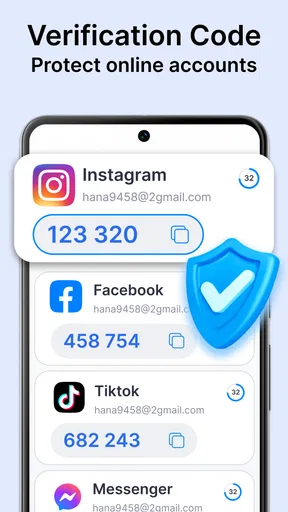
The app enhances security by providing two-factor authentication (2FA), which requires a second form of verification in addition to your password. This means even if someone has your password, they cannot access your accounts without the additional verification code generated by the app.
Can I use Authenticator - 2FA & Password with multiple accounts?
Yes, the app supports multiple accounts, allowing you to manage all your 2FA needs in one place. You can easily add, view, and organize different accounts, making it convenient to enhance security across various services without hassle.
Is it possible to recover my codes if I lose my phone?
The app provides options for backup and recovery to ensure you don’t lose access to your accounts. It’s advisable to enable cloud backup or use export features to save your codes securely, so you can restore them if your device is lost or damaged.
Does the Authenticator app require an internet connection to generate codes?
No, the app generates time-based one-time passwords (TOTPs) that do not require an internet connection. This means you can access your 2FA codes at any time, even when your device is offline, providing added convenience and reliability.
